




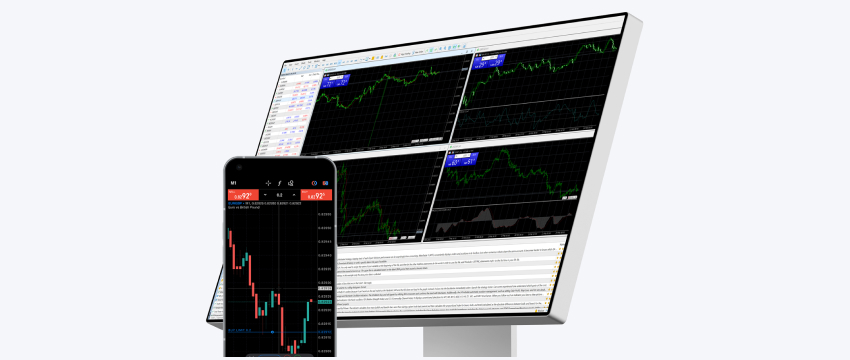
MetaTrader 4 Tutorial: How to Use Expert Advisors (EAs) in MT4
Have you ever thought about the MetaTrader 4 Tutorial? If you have spent any time in forex trading, you have probably heard traders talk about Expert Advisors, or EAs.
These automated trading programs are one of the most recognizable features of MetaTrader 4 and can be used to automate specific trading rules, monitor markets and execute trades according to predefined conditions.
However, using an EA successfully is not simply a matter of installing a file and turning on automated trading. You need to understand what the EA does, how to install it correctly, how to configure its settings and, most importantly, how to test its behavior before trusting it with real money.
This MetaTrader 4 tutorial explains the process step by step, while also covering the practical considerations that traders often overlook.
What Is an Expert Advisor in MetaTrader 4?
An Expert Advisor is a software program designed to run inside MetaTrader 4 and perform trading-related tasks automatically.
EAs are written in MQL4, the programming language used by the MT4 platform. Depending on how they are programmed, they can analyze market conditions, identify trading signals, open and close positions, manage stop-loss and take-profit levels, and apply other predefined rules.
Think of an EA as a set of instructions translated into software.
For example, imagine a simple strategy based on two moving averages:
- Buy when the 20-period moving average crosses above the 50-period moving average.
- Sell when the 20-period moving average crosses below the 50-period moving average.
- Place a stop-loss at a predetermined distance.
- Close the trade when an opposite signal appears.
A human trader could monitor the chart and make those decisions manually. An EA can be programmed to monitor the conditions continuously and act when the rules are met.
That does not mean the EA knows where the market will go next. It simply follows its programming.

Why Do Traders Use EAs – MetaTrader 4 Tutorial
Automation can solve several practical problems.
The first is consistency. A trader may have a perfectly defined strategy but fail to follow it after a series of losses. An EA does not experience frustration, fear or revenge trading.
The second is monitoring. Forex markets operate around the clock during the trading week, while humans obviously cannot watch charts continuously.
The third is speed. An EA can evaluate market conditions and execute an order much faster than a person manually clicking through a trading platform.
There is also a less obvious benefit: automation can make a trader confront the quality of their strategy.
If you cannot clearly describe your entry, exit and risk-management rules, you will struggle to automate them.
How to Install an EA in MetaTrader 4 Tutorial
Before using an EA, you need its appropriate MT4 file. Depending on how it was created or distributed, this may commonly be an .ex4 or .mq4 file.
Once you have the EA file, open MetaTrader 4.
From the top menu, select:
File → Open Data Folder
Then navigate to:
MQL4 → Experts
Place the EA file inside the Experts folder.
After doing this, return to MT4 and refresh the Navigator window. You can usually do this by right-clicking inside the Navigator and selecting Refresh.
Your EA should then appear under:
Navigator → Expert Advisors
If it does not appear, check that the file is in the correct folder and that you are using the correct MT4 installation or trading account.
This is a common beginner mistake: an EA can be installed correctly but placed inside a different MT4 installation than the one currently open.
How to Attach an EA to a Chart
Once your EA appears under Expert Advisors, you can attach it to a chart.
For example, suppose you want to run an EA on EUR/USD.
- Open the EUR/USD chart.
- Select your preferred timeframe.
- Find the EA under Navigator → Expert Advisors.
- Drag the EA onto the chart.
- Review the settings displayed in the EA window.
- Click OK once the configuration is ready.
You should see the EA attached to the chart, usually represented by an icon in the upper-right corner.
This is where an important distinction appears.
An EA is attached to a specific chart and timeframe.
If an EA is designed to operate on a 15-minute EUR/USD chart, attaching it to a one-hour GBP/USD chart may produce completely different behavior—or it may not work as intended at all.
Always read the EA’s instructions before assuming it can be used on any market or timeframe.
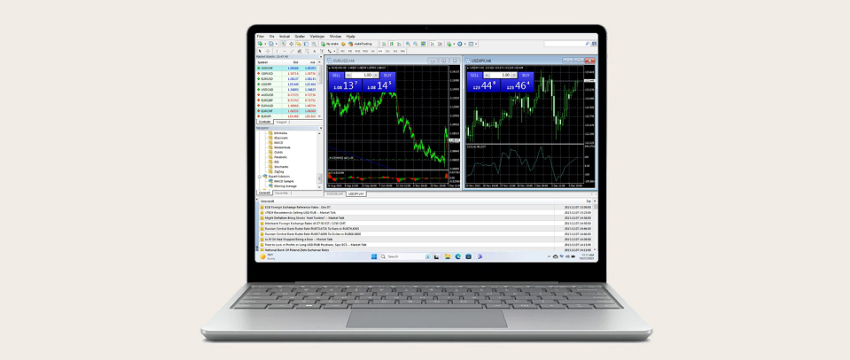
Understanding MT4’s Automated Trading Controls
For an EA to execute trades automatically, MT4’s automated trading functionality needs to be enabled.
The AutoTrading button on the MT4 toolbar controls whether automated trading is generally permitted.
However, there are also permissions inside the individual EA settings.
When you attach an EA to a chart, the Common tab may contain options related to allowing live trading. Depending on the EA, there may also be settings related to DLL imports or external functions.
These permissions deserve attention.
You should never enable additional permissions simply because the EA requests them. Understand what the software requires and only enable functionality you trust.
When automated trading is active, the platform should clearly indicate that the EA is allowed to operate.
How to Configure EA Parameters
When it comes to this MetaTrader 4 Tutorial, it’s crucial to note that one of the most important parts of using an EA is understanding its Inputs.
Different EAs can have completely different parameters, but common examples include:
- Lot size
- Risk percentage
- Stop-loss distance
- Take-profit distance
- Maximum number of trades
- Trading hours
- Maximum spread
- Indicator periods
- Magic number
- Slippage settings
Consider a hypothetical EA with these inputs:
Risk: 1%
Stop-loss: 50 pips
Take-profit: 100 pips
Maximum trades: 2
Changing the risk from 1% to 5% is not a minor adjustment. It fundamentally changes the risk profile of the strategy.
Likewise, changing the stop-loss can dramatically alter the strategy’s expected behavior.
This is why traders should avoid copying settings from another person without understanding what they do.
What Is a Magic Number?
A magic number is an identifier that an EA can use to distinguish its own trades from trades created by another EA or manually by the trader.
Imagine you run two different EAs on the same account.
EA A could use:
Magic Number: 1001
EA B could use:
Magic Number: 2002
This helps the programs identify which positions belong to them.
Magic numbers become particularly useful when managing multiple automated strategies on the same trading account.
Always Test an EA Before Using Real Money
One of the most important lessons in this MetaTrader 4 tutorial is simple:
Do not judge an EA by its marketing claims or by a few profitable trades.
MT4 includes a Strategy Tester that allows traders to evaluate Expert Advisors using historical market data.
You can access it through:
View → Strategy Tester
Depending on the EA and your setup, you can select the Expert Advisor, trading symbol, timeframe and testing period.
You can then examine hypothetical historical performance.
Useful metrics include:
- Total profit or loss
- Maximum drawdown
- Number of trades
- Winning percentage
- Average win
- Average loss
- Profit factor
- Consecutive losses
- Equity curve
However, backtesting has limitations.
A strategy can perform beautifully on historical data and struggle in live markets. Historical testing may not fully capture factors such as execution speed, spreads, slippage, liquidity conditions or changes in market behavior.
That is why forward testing is also valuable.
Demo Testing Comes Before Live Trading
After backtesting, consider running the EA on a demo account.
This allows you to observe how it behaves under live market conditions without immediately putting real capital at risk.
For example, you might discover that:
- The EA trades far more frequently than expected.
- It performs poorly when spreads widen.
- It opens several positions during volatile periods.
- Its drawdown is uncomfortable even though the backtest looked attractive.
- The broker’s execution conditions affect its results.
These observations can be more valuable than simply looking at the historical return.
A demo test also helps you understand whether the EA behaves according to your expectations.
A Practical Example of Using an EA
Imagine a trader has developed a trend-following strategy for GBP/USD.
The rules are:
Entry: Buy when a short-term moving average crosses above a longer-term moving average.
Risk: Maximum 1% of account equity per trade.
Exit: Stop-loss below the recent swing low and take-profit at a predefined risk-to-reward target.
Instead of watching GBP/USD throughout the day, the trader programs these rules into an EA.
The EA monitors the selected chart and waits for the conditions.
When the conditions are met, it can place the trade according to the programmed rules.
But there is an important detail: the trader is still responsible for deciding whether the strategy itself makes sense.
Automation does not transform a weak strategy into a strong one.
It simply makes the strategy execute more consistently.
Common Mistakes When Using EAs
1. Using an EA Without Understanding It
If you cannot explain why the EA enters and exits trades, you should be cautious about putting money behind it.
2. Optimizing Historical Results Too Aggressively
A trader can repeatedly adjust parameters until an EA produces an impressive backtest. The problem is that the resulting settings may be overly tailored to historical data.
This is known as overfitting.
A strategy that has been optimized excessively for the past may fail when market conditions change.
3. Increasing Lot Size After Profits
A few successful weeks can create false confidence. Increasing the EA’s risk because recent results were good can expose the account to much larger losses when conditions change.
4. Running Too Many EAs
Several EAs can generate conflicting positions or create excessive exposure to the same currency.
For example, three different EAs may appear independent but all effectively bet on EUR/USD rising.
The number of programs running is less important than the total risk they create together.
5. Ignoring the EA During Major Market Events
Automation does not mean you can forget about the market completely.
Economic announcements, unusual volatility, technical problems and broker conditions can affect automated strategies.
An EA still requires supervision.
Can an EA Guarantee Profits?
No.
This is one of the most important points for anyone learning how to use Expert Advisors.
There is no legitimate EA that can guarantee consistent profits regardless of market conditions.
Forex markets are dynamic. A strategy that performs well in a trending environment may struggle when markets become range-bound. A system that works with one broker’s execution conditions may produce different results elsewhere.
Be especially skeptical of claims involving guaranteed returns, zero risk or extraordinary historical performance.
Instead, evaluate the strategy based on its rules, historical behavior, drawdown, risk management and performance under different market conditions.
MetaTrader 4 Tutorial Final Thoughts
Learning how to use Expert Advisors can make MetaTrader 4 significantly more powerful, but automation should be viewed as a trading tool—not a shortcut to guaranteed profits.
The best approach is to understand the strategy first, install the EA correctly, configure its inputs carefully and test it extensively before considering live deployment.
Backtesting can help you study historical behavior, while demo trading can reveal how the EA behaves under current market conditions. From there, careful position sizing and ongoing monitoring remain essential.
Ultimately, the most useful MetaTrader 4 tutorial is not simply one that teaches you where to click. It should teach you how to think about automation.
An EA can execute your rules. But, remember, it cannot replace your responsibility for those rules.